How to add a new module position?
This tutorial tells us how to add a new module positions to the Helix V2 Framework based
Joomla 3 Templates. It's easy procedure, it takes approximately max 3 minutes from the time you will start.
Step 1: The first step in adding a new module position to your default template is to edit the
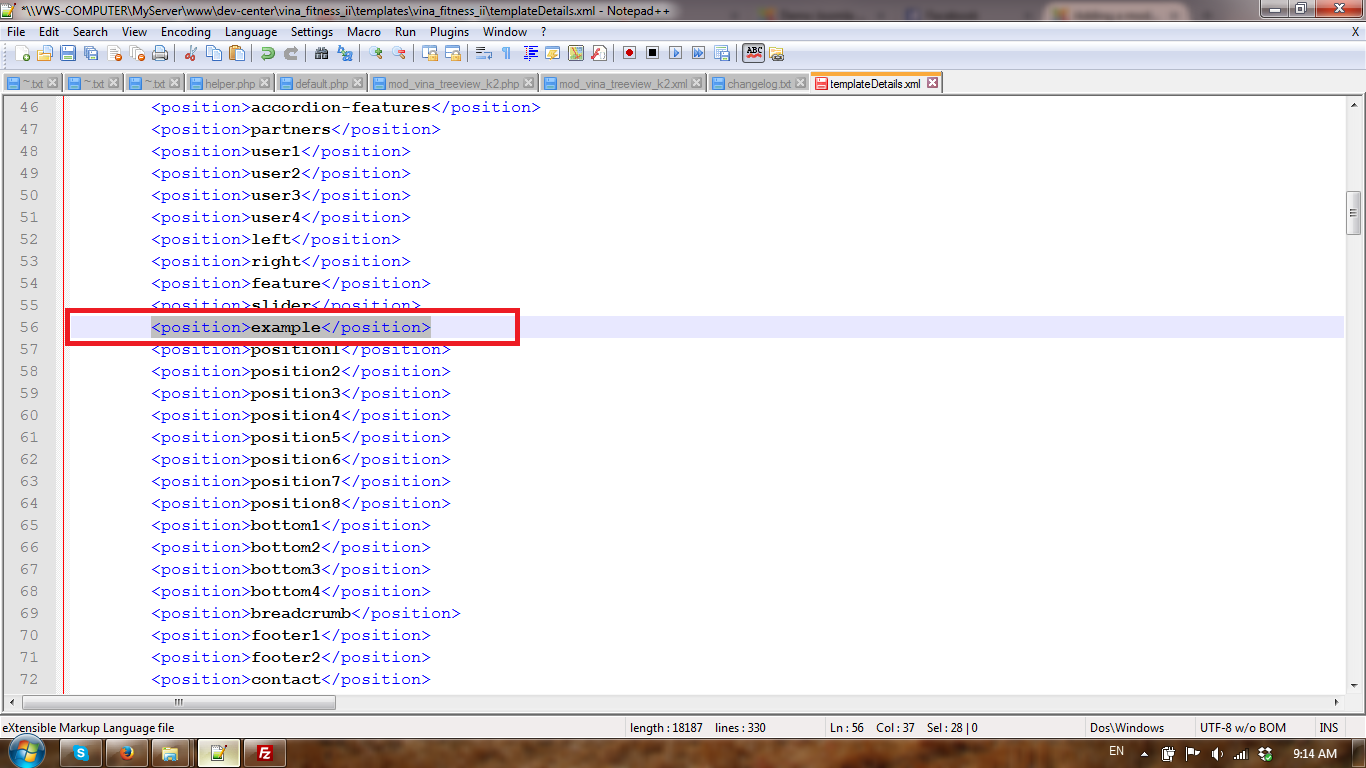
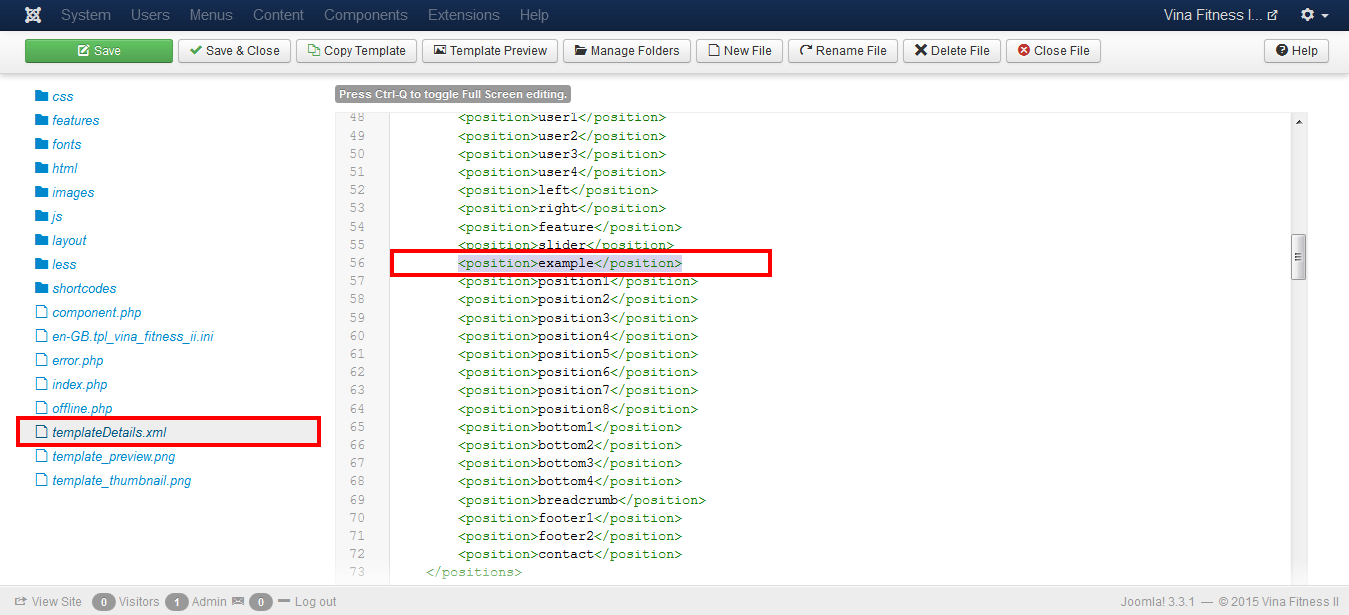
templateDetails.xml file. This file is essential, it holds all key metadata about the template. This file is located under the VinaGecko template folder. Once opened for code editing, locate the <positions></positions> tags. The element <positions> encloses the actual module positions.Within <position> you should insert your desired name, which will later be listed automatically in the
Module Manager in the Joomla back-end. You can use different names for it: "example" , "newposition", "contact" etc. In our example we used following code:
<position>example</position>
Did you know that Joomla 3.x allows you to edit templateDetails.xml file directly from the Template Manager.
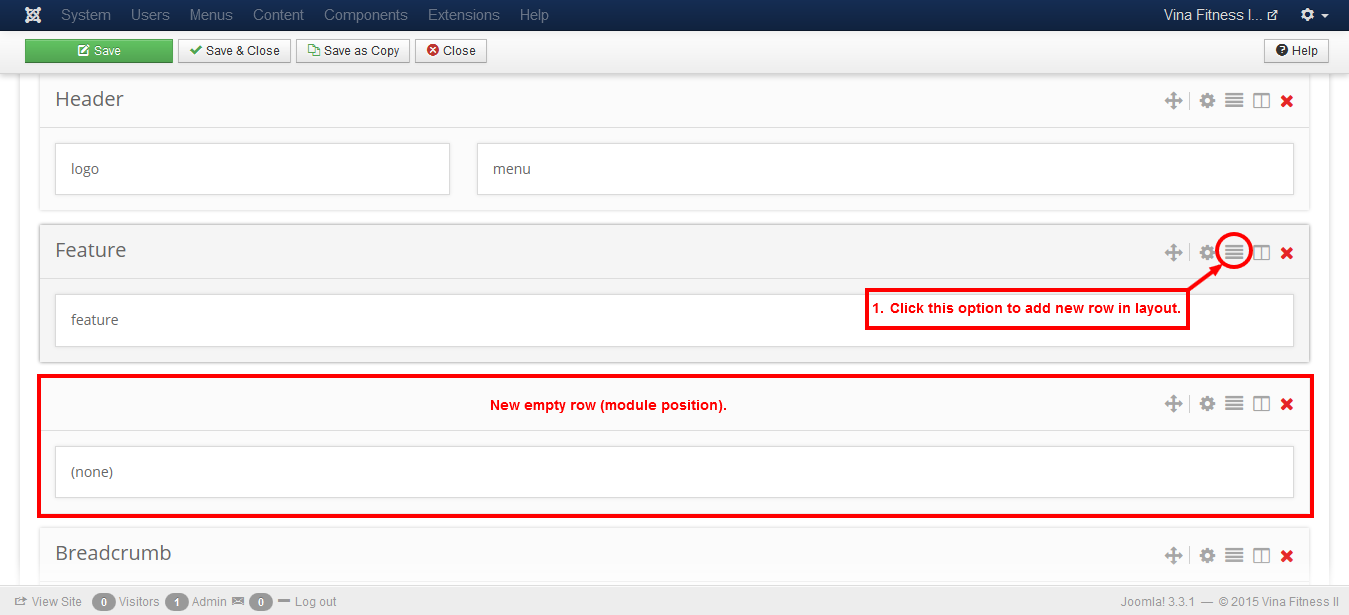
Step 2: The new module position now should be assign from layout builder. Template Manager --> VinaGecko Template --> Layout (tab). Choose place where you want to add it. For example we want to use as new row after Feature positions. If yes, in Feature tool bar click on [=] icon which allows you to add new Row under current.
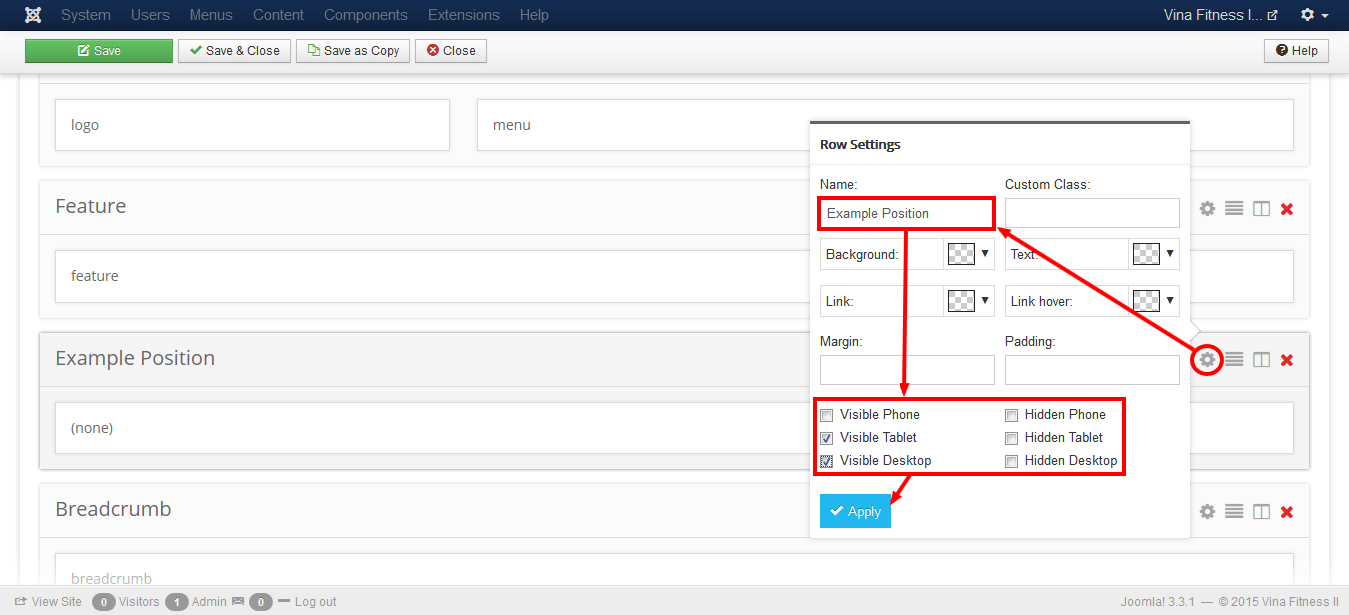
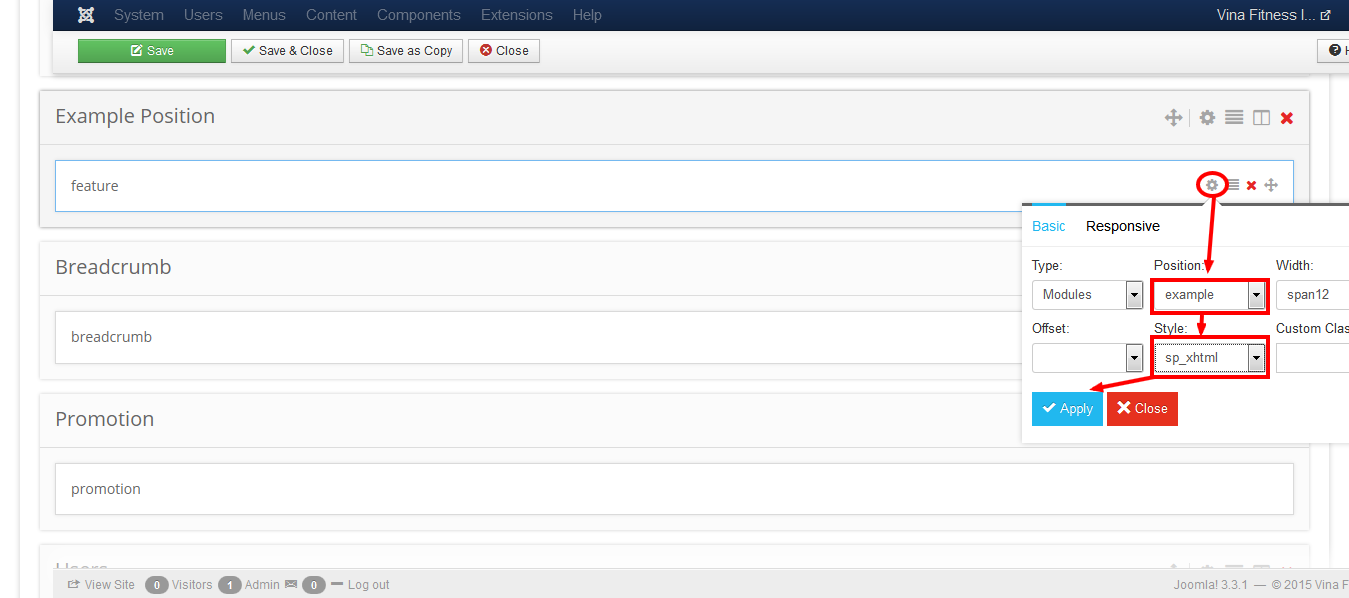
Step 3: Now this new box should be assign to new created module position name and it needs some basic configuration settings.
Now you have to assign new position to new "example" module position and choose its style from list.
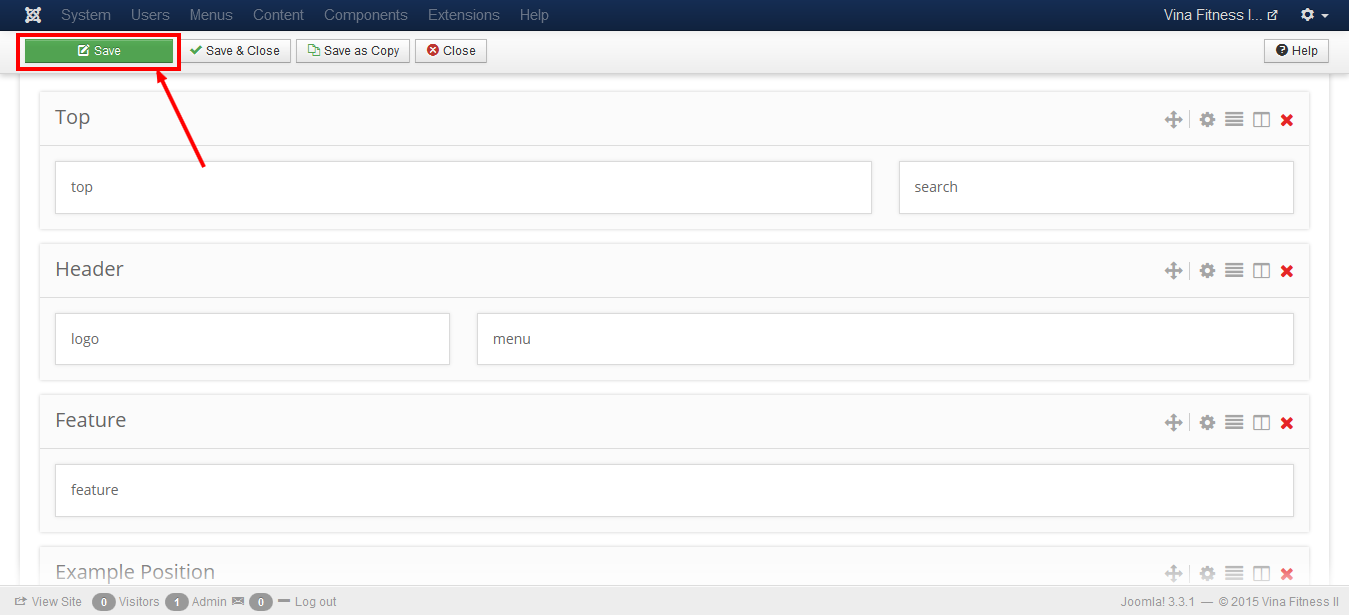
Remember to Apply settings each time. At the end, you have to SAVE all changed layout to make it work.
Since then you can add modules from Module Manager also to this "example" position.